Tuesday, 19 March 2019

Unlock iPhone with Broken Screen 2019


Unlock iPhone with Broken Screen
1.Using iTunes Restoring

If you have synchronized your iPhone with iTunes on a computer, iTunes backup can be used to restore your iPhone. This way is available only when entering password is not required during the process.

Step 1: Connect your device to a computer and load iTunes.

Step 2: Click on the ‘Summary’ button at the top of the iTunes page.

Step 3: Click the option to “Check for Update” and see if there is something new available.

Step 4: Click on the “Restore” option and go through the process.

Step 5: Restore from iTunes backup.


2.Using iCloud Find My Phone

You can use iCloud and the “Find My Phone” feature to unlock your broken screen iPhone with the most recent backup, so hopefully you’ve been backing up frequently.

Step 1: Connect your device to a computer and sign in to your iCloud account.

Step 2: Click the “Find my iPhone” button and then choose “All Devices”.


Step 3: Now click on “Erase iPhone” to get rid of everything including password.


Step 4: Now restore your device from a backup on iCloud and you’ll have your stuff back.
3. Using Siri to Help You Get into Your Device

Siri feature can also be used to fix the problem of iPhone screen cracked cant unlock. It was marked “Helpful” by Apple, so why not have a try?

Step 1: Connect to Siri by pressing and holding the “Home” button.

Step 2: Tell Siri to “Turn on VoiceOver” which allows you to have a different kind of access to your iPhone with cracked screen.

Step 3: Hit the “Home” button again to turn off Siri and open the unlock screen again.

Step 4: Swipe in either direction to select the “Slide to Unlock” button and double click.

Step 5: When the passcode page opens, swipe to the sides until the right number is highlighted and then double click to choose it. Do this one at a time.

Step 6: Once you’re done, swipe until you select the “Enter” button and then double click again.
Conclusion

No matter what kind of problems you might have had with your device or what might have happened to the screen, you definitely don’t want to lose access to your device. The great thing is that a couple of these options (using Siri and iTunes restoring) actually don’t delete the information that you had on the device either. Even the other two solutions may cause data loss, there is no need to worry about it if you’ve been backing up frequently. Please always remember to back up your data and make sure you synchronize your device with iTunes and iCloud, as both are going to make it easier for you to fix iPhone screen cracked cant unlock.

Also Read:jihosoft Free iPhone Data Recovery

Sponsor ads:

Gihosoft Free iPhone Data Recovery:https://www.gihosoft.com/iphone-data-recovery-free.html

Gihosoft iPhone Data Recovery Free

Free iPhone Data Recovery Software for Windows/Mac

Recover up to 12+ types of files, including contacts, SMS, photos, WhatsApp, Viber, notes, etc.

Restore lost data from iOS devices directly or from iTunes and iCloud backup

Recover iPhone data lost due to iOS upgrade/jailbreak, accidental deletion, device lost or broken

Support all the latest iPhone, iPad and iPod Touch

Both Free and Pro version.

If you lost data after you updated to a new iPhone, you can always use Gihosoft iPhone Data Recovery to get the data back from the old iPhone or backup.You may also like: iphonerecovery.com

If you use android phones, please choose Gihosoft Android Data Recovery.

With Gihosoft Android Data Recovery, no longer afraid of data loss!

Must read:Youtube video downloader for pc

Gihosoft RePicvid Free Photo Recovery Software provides a free photo recovery software for windows to help users recover the deleted or lost photo for free.

Jihosoft Android Data Recovery: the best Android Data Recovery software for Windows and Mac to recover deleted contacts, messages, photos, videos, WhatsApp and etc from Android devices.Tips:How to transfer messages from iPhone to iPhone


Jihosoft File Recovery:Recover deleted, Lost, formatted, or corrupted files from PC, flash drive and memory card easily & safely

Tuesday, 12 March 2019

‘Apple News Magazines’ Subscription Service Hint Found in Latest macOS Mojave Beta


With Apple sending out an invite for its March 25 ”It’s Show Time’ event, it is all but confirmed that the company’s premium magazine subscription service is going to be launched soon. Ahead of Apple’s event though, developer Steve Troughton-Smith has shared some screenshots and snippets of code found in macOS 10.14.4 beta referring to Apple’s News subscription service.

From the code snippets found in the latest beta of macOS 10.14.4, Steve says that magazines offered in the Apple News app will be PDF-based and they can be stored locally for offline reading. A screenshot in one of the tweet also shows how users will be notified when there’s a new issue for one of the magazines they like to read. Seemingly, Apple will be calling the service Apple News Magazines.


Steve Troughton-Smith

✔@stroughtonsmith

Unsurprisingly, it looks like Apple News' magazine service is prepared to launch on macOS too
Also Read:How to Make Funny Memes on iPhone & Best Meme Maker Apps in 2019
Also Read:How to Convert SWF File to HD VideoAlso Read:10 Best Photo Collage Apps for iPhone/iPad to Create Photo Collages 2019

228

11:35 PM - Mar 12, 2019

55 people are talking about this

Twitter Ads info and privacy

Apple’s magazine subscription service will be similar to Texture, a company which it acquired last year. Despite Apple’s acquisition, Texture continues to be available in the App Store and offer a magazine subscription service for $9.99/month. It remains to be seen if Texture will be removed from the App Store or it will continue to coexist alongside Apple’s own News subscription service once the latter is launched.

A report had detailed that Apple is asking publishers 50 percent of the total revenue generated from its news subscription platform. Despite this insane demand, many publications have signed up for the service hoping that Apple’s reach will mean that more subscribers get onboard the platform and the final payout is bigger in spite of the Cupertino company itself taking a 50 percent cut. Apple is also expected to heavily promote its news subscription service which should translate into millions of users signing up for it.
Our Take

Apple seems to be focusing heavily on its Services business this year. With iPhone sales slowing down, the company is improving its existing services and launching new ones to take advantage of its existing user base and generate even more revenue. Alongside its premium news subscription service, Apple will also announce its TV streaming platform at the event which will launch to the public later this year.

Like this post? Share it!Also Read:10 Best Photo Collage Apps for iPhone/iPad to Create Photo Collages 2019
Also Read:How to Post Instagram Story Longer than 15 Seconds on Android?
Also Read:SWF to FLV – How to convert SWF to FLV Mac


Also Read:How to Retrieve Lost Password for iPhone Backup

Tuesday, 5 March 2019

iPhone 6/7/8/X Ringtone not Working on iOS 12/11? Fix it Here!


When iPhone Ringtone not Working, You Should Check the Mute/Ring Switch First

When you notice your device has stopped ringing out, it is important to check to be sure you didn’t put the mute button on. If an orange/red line shows on the switch, this means your device is on Mute mode. Turn off the Mute switch by pushing the switch towards your screen to switch ON your device ringer.
Restart Your iPhone

Some minor bugs or issues may occur after updating to the iOS 12/11, one of which could be the ringtone not working on iPhone 6(or iPhone 7/8/X). To turn off device, press down the Sleep/Wake button until the device shows “slide to power off,” and reboot the device after few minutes by pressing down the same key.
Reset All Settings

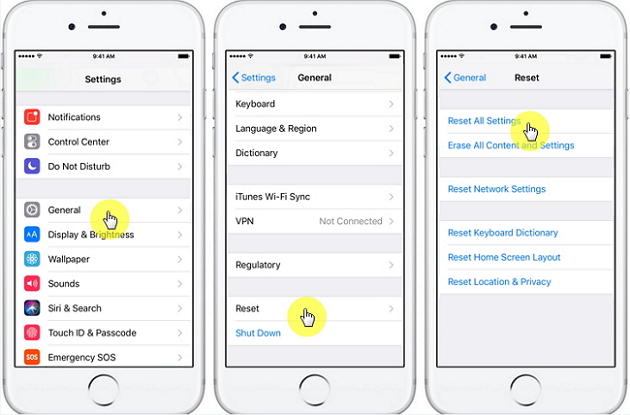
In case you have tried all the aforementioned tips, and you still have issues with your ringtone, then you should reset your entire device Settings. Below are the steps for resetting your device settings:


Open your Settings app and select General


Click on Reset, and then click Reset All Settings


Enter your device password if required, and select Reset All Settings


Your device will restart to its factory settings. This should thereafter solve the ringtone issues.


Hard Reset Your iPhone

Have you tried the above tips, and you still can’t sort out the ringtone issues on your device? Then we will recommend you do a hard reset on your iPhone. Please note that this process totally erases all data and information on your device and restores it to its factory settings. It is therefore important that you back up your device first, so that you don’t lose important data.
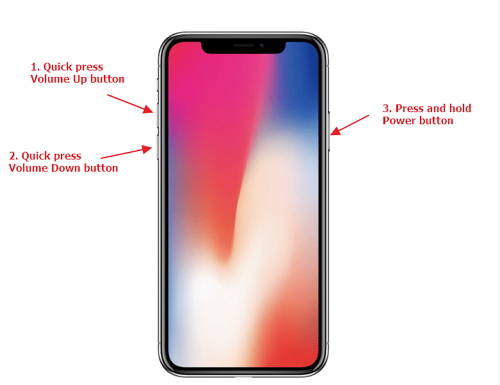
How to Hard Reset iPhone 8, 8Plus & iPhone X


Press and quickly release the Volume Up key


Press and quickly release the Volume Down key


Press Down the Sleep/Wake (power) button until the Apple logo appears on the screen.


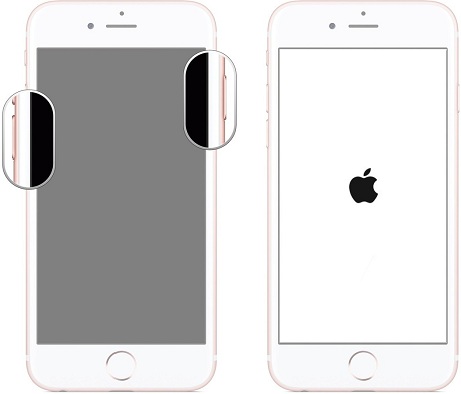
How to Hard Reset iPhone 7, 7Plus


Press and hold down the Sleep/wake and Volume Down buttons together until the Apple logo comes up on the screen. Also Read:Top 6 Best Vumoo Alternative Sites for You to Watch and Download Movies 2019

Also Read:How to Access and Unlock Android Phone with Broken Screen


How to Hard Reset iPhone 6s and Earlier Versions


Press down both the Sleep/wake and Home buttons until the Apple logo shows on your iPhone screen.Also Read:How to Download Songs from Spotify with 4 Best Spotify Music Downloaders 2019

Also Read:How to Fix AC3 Audio Format Not Supported Error in MX Player


Bonus: Customize Ringtone from Your Favorite Song without iTunes

When it comes to customizing ringtones for iPhones, iMyFone TunesMate has proven to be the best option. Superb media management software that gives you room to make any song of your choice a custom ringtone for your iPhone. Flexible and easy to use, all you just need do is to select the song to begin.Also Read:jihosoft Free iPhone Data Recovery

Sponsor ads:

Gihosoft Free iPhone Data Recovery:https://www.gihosoft.com/iphone-data-recovery-free.html

Gihosoft iPhone Data Recovery Free

Free iPhone Data Recovery Software for Windows/Mac

Recover up to 12+ types of files, including contacts, SMS, photos, WhatsApp, Viber, notes, etc.

Restore lost data from iOS devices directly or from iTunes and iCloud backup

Recover iPhone data lost due to iOS upgrade/jailbreak, accidental deletion, device lost or broken

Support all the latest iPhone, iPad and iPod Touch

Both Free and Pro version.

If you lost data after you updated to a new iPhone, you can always use Gihosoft iPhone Data Recovery to get the data back from the old iPhone or backup.You may also like: iphonerecovery.com

If you use android phones, please choose Gihosoft Android Data Recovery.

With Gihosoft Android Data Recovery, no longer afraid of data loss!

Must read:Youtube video downloader for pc

Gihosoft RePicvid Free Photo Recovery Software provides a free photo recovery software for windows to help users recover the deleted or lost photo for free.

Jihosoft Android Data Recovery: the best Android Data Recovery software for Windows and Mac to recover deleted contacts, messages, photos, videos, WhatsApp and etc from Android devices.Tips:How to transfer messages from iPhone to iPhone

How to Fix YouTube App Crashing in iOS 12 2019

How to Fix YouTube App Crashing in iOS 12 2019

If you are among the many people who love to spend their time on YouTube watching cool videos, you may have noticed your iPhone misbehaving with your YouTube app in iOS 12. This can cause you some tension if you do not know what is causing this problem. We are going to expound more on some of the ways you can fix YouTube app crashing in iOS 12.

Also Read:Top 6 Best Vumoo Alternative Sites for You to Watch and Download Movies 2019

Also Read:How to Access and Unlock Android Phone with Broken Screen


How to Fix YouTube App Crashing in iOS 12


1. Reboot Your iPhone


2. Clear YouTube Cache


3. Update YouTube App


4. Check Network And Router Settings


5. Reinstall YouTube App


6. Reset All Settings


7. Fix YouTube App Crashing Without Data Loss
1. Reboot Your iPhone

Rebooting your iPhone is simply forcing it to restart. These steps will help you if your YouTube app is not working in iOS 12.

If you are using iPhone X, 8, 8 Plus, press both the Volume up and down buttons. Then you need to long press the Side button till the screen goes off and you see the Apple logo.

For users of the iPhone 7, 7 Plus, you need to long press the Side button and the Volume down button till your device’s screen goes off and you see the Apple logo.


And lastly for users of iPhone 6s or its earlier models, you need to long press the Sleep button and the Home button till the device’s screen goes off and the Apple logo appears.
2. Clear YouTube Cache

There are certain times when your YouTube app like any other app will have some issues that could be caused by something minor or serious. If it is the first time your YouTube app crashing, this could most probably be caused by a server lapse, memory error or a minor app glitch. To fix this problem, you will need to clear all the recent apps on your device by following these steps:

Step 1: Swipe up from the bottom to the middle of your device’s screen, then hold till you see the App switcher.

Step 2: Then locate YouTube from the apps list by swiping left to right.

Step 3: Then firmly touch and hold the YouTube app.

Step 4: Then click on the (-) sign to clear the app.

Step 5: Alternatively, immediately you see the (-) sign you can swipe up to close the YouTube app.


You can also clear any apps running in the background to prevent them from causing problems to your YouTube. Once you are done clearing the recent apps, reboot the device for the new changes to be applied then refresh the system.Also Read:5 Best Music Player for PC to Free Download 2019
Also Read:Top 6 Best Alternative Sites to YTS Torrent Movie Website 2019
3. Update YouTube App

Your YouTube app may at times not work properly if you iPhone is not running the latest YouTube version. You need to follow these steps to update your YouTube app:

Step 1: On your device launch the App store.

Step 2: Click on the Updates icon to start updating your YouTube app.

Step 3: When completed, reopen YouTube and check if it is working properly.


4. Check Network And Router Settings

If you are having problems accessing your YouTube app, you can check your network and router settings. You can try resetting your router if you are using a router for internet or check your router and network settings online by trying to troubleshoot to find out the problem. However, there are times when you need quick access to your YouTube and do not have the time to go through all these checks or even update your iOS 12. You can access your YouTube through the web by opening Safari and entering your YouTube address on the bar.Also Read:Top 6 Windows Photos Alternatives to View Photos on Windows 10
Also Read:XD Card Recovery – Recover Deleted Photos from xD-Picture Card
Also Read:How to Convert SWF to MP4 on Mac or Windows
Also Read:How to Fix the “Black Screen of Death” on iPhone XS/X/8/7


5. Reinstall YouTube App

Deleting and reinstalling the app will give you better chances of fixing YouTube crashing issue if updating the app did not work. Follow these steps:

Step 1: Go to your device’s Home screen and long press on the app icon till it starts to shake. An (x) will then appear on the icons.

Step 2: Click on the (x) to delete the app.

Step 3: Go to the App store, search for the YouTube app and reinstall it again.


6. Reset All Settings

Improperly configured network related options and settings on your iPhone could cause YouTube app not working properly. You can try reverting back the modified changes you made on the settings to see if there will be a difference by following these steps:

Step 1: On your device’s Home screen click on Settings.

Step 2: Then click on the General tab.

Step 3: Scroll till you see the Reset tab and click on it.

Step 4: Select Reset all settings tab. This will reset your iPhone settings to their original state without losing any of your iPhone’s data.

Step 5: Click on Reset all network settings to reset all settings on your iPhone.

Step 6: Enter your device’s passcode if requested.

Step 7: Then click on the option to confirm the reset.


Once the reset is complete, wait for your device to reboot then open your YouTube app to see if the problem is gone.
7. Fix YouTube App Crashing Without Data Loss

iMyFone iOS System Recovery is a repair tool that is used on iOS devices and its versions to help return your iPhone back to its proper working condition without losing any data. This app will help you fix serious issues on your iPhone using the Standard Mode, Exit recovery Mode and Advanced mode. And it is fully compatible with all iOS devices and its versions including Phone X, 8, 8 Plus.

Sunday, 3 March 2019

iTunes Uninstall Tool: Remove iTunes & Components 2019


#1. Uninstall Tool

Uninstall tools promises clean removal of iTunes and iTunes software components. You can use it to clean a limited amount of iTunes files and registry items. However, you’ll need to install iTunes in the first place using Install Tracker.

Steps to use Uninstall tool:

Step 1: Download and install “Uninstall Tool” on your PC. Launch it and select “Uninstall or Modify” from the home interface.

Step 2: After default uninstallation program has completely unins


talled iTunes, click “Yes” to uninstall iTunes related components.
#2. Revo Uninstaller

Revo Uninstaller is one of the iTunes uninstall utility that you can use to remove leftover traces of Apple software and registry settings, files and folders on your Windows computer. It has a free version that gives you 30 days free trial before committing your money.

Steps to uninstall iTunes and its related Apple software using Revo Uninstaller:

Step 1: Download and install Revo on your PC.

Step 2: Launch the software and click “Uninstall” to scan for iTunes and its related software.

Step 3: Click “Ok” when the uninstallation process is complete.


#3. CopyTrans Drivers Installer

CopyTrans Drivers Installer is another tool that promises to uninstall iTunes and related Apple software completely. From the look of this software, it seems you can only remove iTunes related Apple software one by one and in a particular order. However, they also offer other solutions to remove iTunes in few clicks.

Steps to uninstall iTunes using CopyTrans:

Step 1: Download CopyTrans Driver Installer. Open the zip folder and drag “CopyTransDriverInstaller.exe” file to your desktop, double-click on it. And start the program.

Step 2: Click “Uninstall” to remove iTunes, QuickTime, Apple Software Update, Apple Mobile Devise Support, Bonjour, and Apple Application Support from your PC.

Step 3: CopyTrans will now remove iTunes and all iTunes software components from your PC.


The Comparison of the 4 iTunes Uninstall Tools

We’ve done a good introduction to the best four iTunes uninstaller apps, but we are yet to give you a clear view of the one that would suit you best. Among these iTunes uninstaller tools:


TunesFix is the best among them because it doesn’t have any demerits or cons.


Others like Uninstaller tool works when iTunes installed using a special tool called Installer Tracker.


Revo offers no feature for features for iTunes repair.


While CopyTrans isn’t straightforward and can take hours to completely uninstall iTunes and Apple software components.Sponsor ads:


Gihosoft Free iPhone Data Recovery:https://www.gihosoft.com/iphone-data-recovery-free.html


Gihosoft iPhone Data Recovery Free


Free iPhone Data Recovery Software for Windows/Mac


Recover up to 12+ types of files, including contacts, SMS, photos, WhatsApp, Viber, notes, etc.


Restore lost data from iOS devices directly or from iTunes and iCloud backup


Recover iPhone data lost due to iOS upgrade/jailbreak, accidental deletion, device lost or broken


Support all the latest iPhone, iPad and iPod Touch


Both Free and Pro version.


If you lost data after you updated to a new iPhone, you can always use Gihosoft iPhone Data Recovery to get the data back from the old iPhone or backup.You may also like: iphonerecovery.com


If you use android phones, please choose Gihosoft Android Data Recovery.


With Gihosoft Android Data Recovery, no longer afraid of data loss!


Must read:Youtube video downloader for pc


Gihosoft RePicvid Free Photo Recovery Software provides a free photo recovery software for windows to help users recover the deleted or lost photo for free.


Jihosoft Android Data Recovery: the best Android Data Recovery software for Windows and Mac to recover deleted contacts, messages, photos, videos, WhatsApp and etc from Android devices.Tips:How to transfer messages from iPhone to iPhone


jihosoft Free iPhone Data Recovery

iPhone iOS 12 Doesn’t Show up on Computer? The Best Fix!


1 Try Some Obvious Tips

There are some of the good fixes you can try that can provide solutions to questions like “why isn't my iPhone showing up on my computer?” and some other questions.


Update or Upgrade your Windows to the latest version.


Restart your Windows PC and iPhone.


Ensure you are connecting your iPhone to your PC with an original Apple lightning cable.


Trust your computer your computer if you haven’t done so.
3 Reinstall the Apple Mobile Device USB Driver


Disconnect your iPhone from computer.


Unlock your iPhone and go to the Home screen. Then connect your iPhone to computer.


Press the Windows and R keys at the same time.


In the run window, type the following texts and enter.


%ProgramFiles%\Common Files\Apple\Mobile Device Support\Drivers


Right-click on the usbaap164.inf or usbaap1.inf and click on Install.


When it’s done, unplug your iPhone from computer and reconnect your iPhone to try.


Final Words:

All the aforementioned techniques can work in solving this issue, but the best among them is iMyFone TunesFix. Download, install and use TunesFix software today in order to say goodbye to all iTunes and PC issues.Sponsor ads:

Gihosoft Free iPhone Data Recovery:https://www.gihosoft.com/iphone-data-recovery-free.html

Gihosoft iPhone Data Recovery Free

Free iPhone Data Recovery Software for Windows/Mac

Recover up to 12+ types of files, including contacts, SMS, photos, WhatsApp, Viber, notes, etc.

Restore lost data from iOS devices directly or from iTunes and iCloud backup

Recover iPhone data lost due to iOS upgrade/jailbreak, accidental deletion, device lost or broken

Support all the latest iPhone, iPad and iPod Touch

Both Free and Pro version.

If you lost data after you updated to a new iPhone, you can always use Gihosoft iPhone Data Recovery to get the data back from the old iPhone or backup.You may also like: iphonerecovery.com

If you use android phones, please choose Gihosoft Android Data Recovery.

With Gihosoft Android Data Recovery, no longer afraid of data loss!

Must read:Youtube video downloader for pc

Gihosoft RePicvid Free Photo Recovery Software provides a free photo recovery software for windows to help users recover the deleted or lost photo for free.

Jihosoft Android Data Recovery: the best Android Data Recovery software for Windows and Mac to recover deleted contacts, messages, photos, videos, WhatsApp and etc from Android devices.Tips:How to transfer messages from iPhone to iPhone

jihosoft Free iPhone Data Recovery

Friday, 1 March 2019

[Solved] How to Make Notes Private on iPhone/iPad?


1 Lock Notes with Password or Touch ID

You an also make notes private on iPhone by locking them. When you try to protect a note for the first time, you will be asked to set a global password. You can also set the password later if you want.

Follow these instructions to set a password in Notes:

Step 1. Open Notes app, find a note and select it.

Step 2. Use the Share button and then tap the Lock Note option.

Step 3. Now you will need to enter a password or use Touch ID for protecting your notes.


After you perform the above mentioned steps, your notes will be automatically locked. If any of your notes is unlocked, then you can manually lock it at any time.
3 Delete Notes from iCloud

There are two ways to delete notes from iCloud. You can either delete them via the Settings app or you can visit iCloud.com and delete them from there.

Follow these instructions to delete notes via iCloud.com


Visit iCloud.com on your favorite web browser.


Log in using your Apple ID and password.


Now navigate to Notes and select the notes that you wish to delete. Then click the Delete button to remove them.


Bonus Tip: How to Erase Deleted Notes Permanently

When you delete notes from your iPhone, they are note permanently erased and can be easily recovered via a data recovery software. This can be a huge privacy risk. To protect your privacy, it is highly recommended that you permanently erase those deleted notes. iMyFone Umate Pro will help you do just that. Its Erase Deleted Files mode can scan your iPhone for any deleted files and then erase them permanently, making them 100% unrecoverable. You can use this mode to erase your deleted notes permanently and protect your privacy.Also Read:4 Best Chrome Extensions to Download YouTube Videos
Also Read:Top 5 Legal Websites to Download Free Ringtones for iPhone XS/X/8/7/6s/6
Also Read:How to Go Live on Tik Tok/Musical.ly in 2019

Export/Share iTunes Playlist to iDevices with iTunes


Export/Share iTunes Playlist to iDevices with iTunes

If you want to share iTunes playlist using iTunes itself, then you can refer to iTunes to sync the playlists.
Also Read:How to Make a Folder Password Protected
Step 1. Connect your iDevice to the computer.

Step 2. When it connect to iTunes successfully, select the icon for your device which is located at the upper-left portion of the screen.

Step 3. Select the “Music” option.

Step 4. Select “Sync Music”.

Step 5. In the “Playlists” section, check the playlists you wish to sync with your iOS device.

Step 6. Select “Sync” and wait for your playlist to sync to your iDevice.


Share iTunes Playlist as A Gift

One of the ways that you can share your iTunes playlist is to send it as a gift for the people you want to share it with them. This method isn’t simple but you can say that it’s more elegant way to send your favorite music that you want to share it with your beloved people. And now let’s get down to business.

Step 1. You need to start with opening your iTunes and please update it to the latest version.

Step 2. Sign in using your Apple ID and enter the password of your account.

Step 3. Now go to the iTunes store and find the item which you are looking for which in our case is Music.


Step 4. To the right of the item’s price which belongs to music category click the arrow. And from the menu choose “Gift This Album”.


Step 5. Now fill your payment information.


Step 6. All you got to do is to enter the recipient email address pick the data you want to send to gift.

Step 7. Just confirm the purchase and click on “Buy Gift”.


You may also like:Also Read:4 Best Chrome Extensions to Download YouTube Videos
Also Read:Top 5 Legal Websites to Download Free Ringtones for iPhone XS/X/8/7/6s/6
Also Read:How to Go Live on Tik Tok/Musical.ly in 2019

How to Delete Phone Numbers from iCloud


How to Delete Phone Numbers from iCloud

If you don't want to use a third-party app or software and wish to delete all your iPhone contacts at once, then it can be achieved by using the iCloud feature.

Step 1. Open Settings app on your iPhone.

Step 2. Navigate to Apple ID > iCloud.

Step 3. Once in the iCloud section, find the Contacts option and toggle it off. You will be asked whether you wish to delete all of the iCloud contacts from your iPhone.

Step 4. Tap 'Delete from My iPhone' option. All the contacts that are synced with your iCloud account will now be deleted.


Also Read:4 Best Chrome Extensions to Download YouTube Videos
Also Read:Top 5 Legal Websites to Download Free Ringtones for iPhone XS/X/8/7/6s/6
Also Read:How to Go Live on Tik Tok/Musical.ly in 2019